 ONI Games · Published
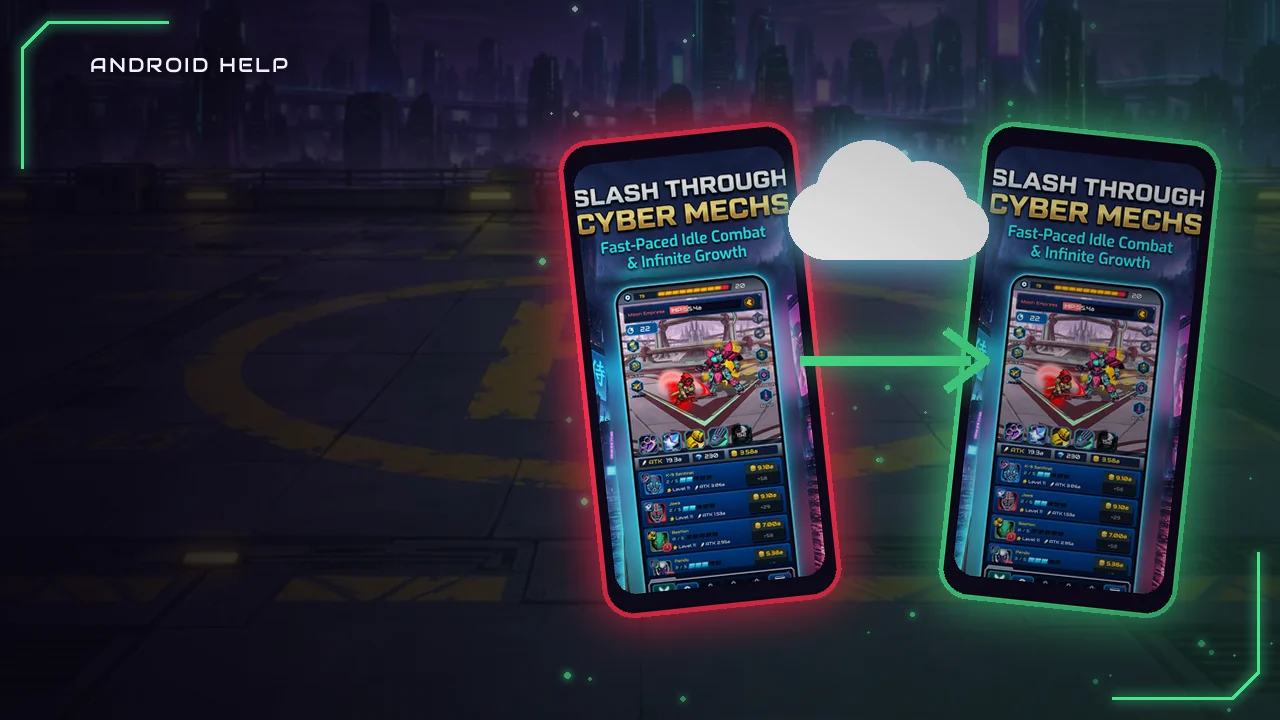
 Game progress moves to a new phone only if it was saved somewhere other than the old phone. How to check where each game keeps it, what Android's own transfer copies and what to do before you reset.
Your game progress comes with you to a new Android phone only if it is saved somewhere other than the old phone. There are three places it can be: the game's cloud save (usually Google Play Games), an account on the game's own servers, or Android's backup. Which one applies depends on the game, so check every game you care about before you reset or trade in the old phone.
Quick checklist: open each game on the old phone, find its cloud save or account option in the settings, sign in and save. Then check that Android backup is on. Keep the old phone until every game has loaded its progress on the new one.
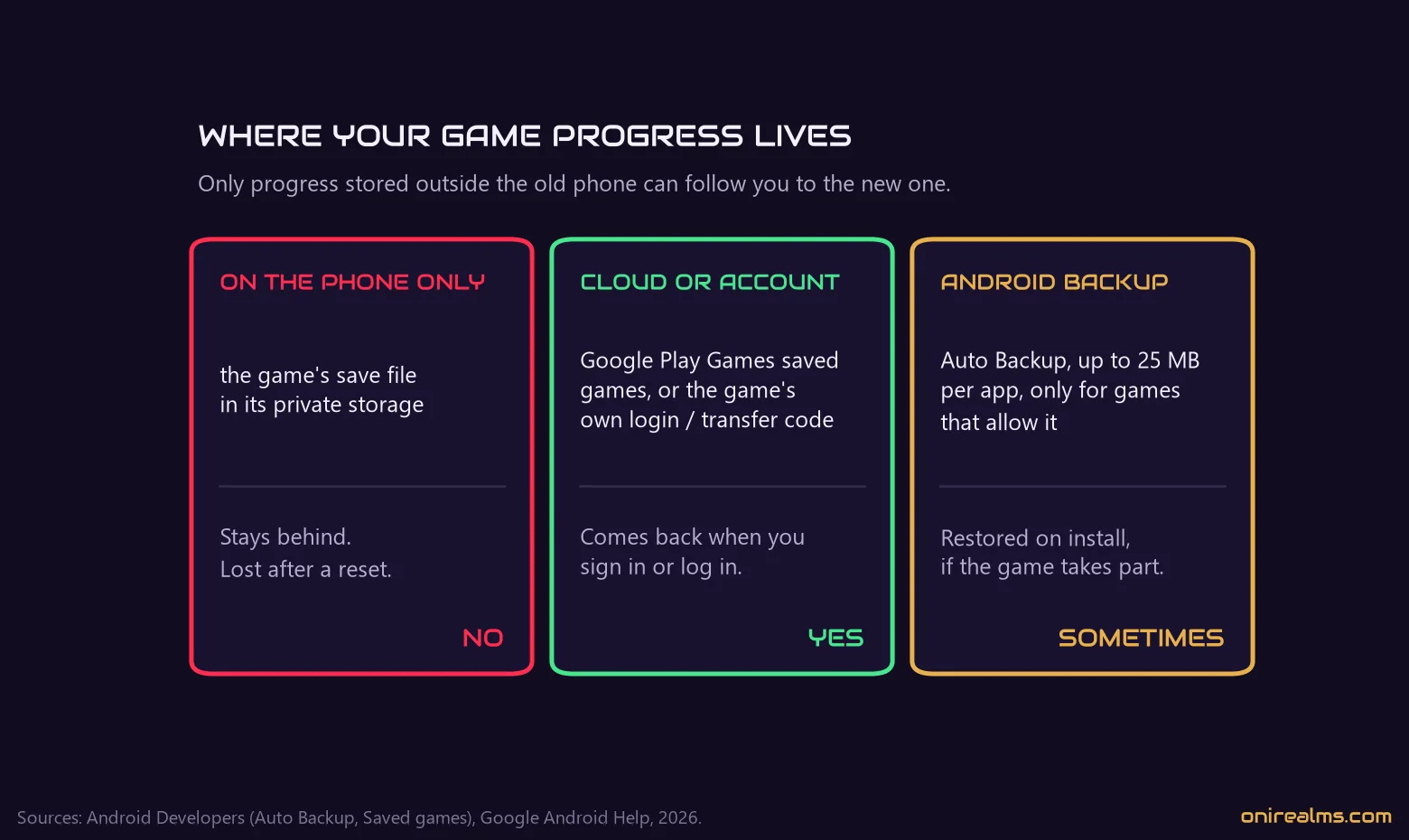
Where is your game progress stored?
Most mobile games keep their save file in the app's private storage on the phone. That file never leaves the phone on its own. Progress survives a phone change only when it is also copied somewhere else:
| Where the progress is | Comes to the new phone? | What you need | Common in |
|---|---|---|---|
| Only on the phone | No | nothing can move it later | small offline games |
| Google Play Games cloud save | Yes, when you sign in | the same Google account | idle, puzzle and casual games |
| The game's own account | Yes, when you log in | the game's login, or a transfer code | online RPGs, gacha and multiplayer games |
| Android backup | Sometimes | backup turned on, and a game that allows it | apps with small saves |
The game's settings screen usually tells you which one it uses. Look for words like cloud save, sync, save and load, link account, bind account or transfer code.
Method 1: Google Play Games cloud save
Google Play Games has a feature called Saved Games that stores game progress on Google's servers, linked to your Play Games profile. According to Google's developer documentation, a game can store up to 3 MB of progress per saved game there, and the same save can be loaded on any device where you sign in with that profile.
How it works on a new phone:
- Sign in to the new phone with the same Google account you used on the old one.
- Install the game from Google Play.
- Open it and let it sign in to Play Games, or tap the sign-in or cloud button in its settings.
- Load the cloud save when the game offers it. Some games do this automatically, others have a Load button.
Do this before you play on the new phone. If you start a fresh game first, some games save that new progress to the cloud, and then you have to choose between two saves.
How our games handle it
All four ONI Games titles use Google Play Games cloud save, but not in exactly the same way:
- Idle Ronin backs up your progress automatically after you sign in. On a new phone, or after a reinstall, it offers to load the cloud save when that one is further ahead.
- Idle Summoner saves to the cloud when you tap Save in Settings, so save once more after your last session on the old phone. On the new phone, sign in and tap Load. Loading replaces the progress on that phone and restarts the game.
- Idle AI Factory keeps a cloud save of your whole factory and offers to load it when you start the game on the new phone with the same account.
- Block Brain saves your Brain level, coins, boosters, best scores and cosmetics, and loads them automatically when you sign in on the new phone.
Method 2: The game's own account or a transfer code
Online games often keep your progress on their own servers instead. They let you link the account to Google, Facebook, Apple or an email address, or they give you a transfer code, a one-time ID and password you type into the game on the new phone.
The trap here is the guest account. Many games start you as a guest, and a guest account exists only on that one phone. If you never link it, uninstalling the game or resetting the phone can delete the progress for good. Link the account in the game's settings before you switch, and write down your player ID in case you need support.
This is also the only method that works between Android and iPhone. Google Play Games saves do not carry over to iOS, so moving a game from Android to iPhone (or back) needs a game that has its own account system.
Method 3: Android's backup and "Copy apps & data"
When you set up a new Android phone, Google offers to copy apps and data from the old one, with a cable or wirelessly. That moves your apps, photos, contacts, messages and most settings. Google's own help page is clear about what it does not move, and one item on that list matters for games: data from apps that do not use Android backup.
Android backup, called Auto Backup for apps, is on by default for apps, but developers can turn it off, and it has limits. Android's developer documentation lists them:
- It works on Android 6.0 and newer.
- Each app can back up at most 25 MB, stored in a private area of your Google account that does not count toward your storage.
- A backup runs when at least 24 hours have passed since the last one, the phone is idle and it is on Wi-Fi.
- The data is restored when the app is installed, before you open it for the first time.
Many games opt out of Android backup, because a restored save can clash with their cloud save or account, and big games are over the 25 MB limit anyway. So treat Android backup as a bonus, not a plan. To check that it is on, open Settings > Google services > Backup (on Google's Android; phone makers sometimes name the menu differently) and look at the backup details and the time of the last backup.
Phone makers' own transfer tools, such as the ones Samsung and others ship, follow the same backup rules for app data. Android's documentation notes that on Android 12 and newer some manufacturers allow a direct phone-to-phone transfer even for apps that turn cloud backup off, so a cable transfer can move more than a cloud restore. It is still up to each game.
Before you reset your old phone
- Make a list of the games you would miss.
- Open each one and look in its settings for cloud save, sync or account options.
- Sign in or link an account, then save manually if the game has a Save button.
- Write down player IDs and transfer codes, and keep them somewhere other than the phone.
- Check that Android backup is on and ran recently.
- On the new phone, sign in with the same Google account before you install the games.
- Open each game, load its save, and only then wipe the old phone.
What happens to in-app purchases?
Purchases made on Google Play belong to your Google account, not to the phone. Permanent purchases, such as removing ads or a premium upgrade, come back when you use the same account. In Block Brain, for example, No Ads returns automatically when you start the game with the Google account you bought it with. Items you use up, such as coins or gems, are part of your progress, so they come back only with the save.
Why didn't my progress come back?
- Different Google account. If the phone has several accounts, Play Games may be using another one. Check the account in the Play Games profile or in the game's settings.
- The game made a new save first. If you played before loading, look for a Load or Restore option and pick the older, further save.
- The progress was on a guest account. Contact the game's support with your player ID, purchase receipts and the date you last played. It is not always recoverable.
- The game never had cloud save. Then the save stayed on the old phone. If you still have it, do not reset it, and ask the developer whether there is a way to move it.
FAQ
Does a factory reset delete game progress?
Yes, for everything stored only on the phone. Progress in a cloud save or on a game account survives, because it is not on the phone.
Can I transfer game progress without a Google account?
Only if the game has its own account or transfer code system. Google Play Games cloud saves and Android backup both need your Google account.
How do I back up game data on Android?
The reliable way is inside each game: its cloud save or account link. Turning on Android backup helps with games that allow it, but you cannot choose which games take part.
Can I move progress from one game account to another?
Usually not. Saves are linked to one profile. Some developers can help, so ask their support.
Switching phones is also a good moment to look at what you play. Our guide to idle games explains why progress in that genre is worth protecting, and our offline games guide covers which games need a connection at all.
Sources
- Google, Copy apps & data from an Android to a new Android device, Android Help.
- Google, Back up or restore data on your Android device, Android Help.
- Android Developers, Back up user data with Auto Backup.
- Android Developers, Saved games, Google Play Games Services.
- ONI Games: how our four games save progress, from the games and their help pages, September 2026.